
TL;DR
WooCommerce stores can’t fully cache their highest-value pages—Cart, Checkout, and My Account all serve per-user data—so standard WordPress speed advice only gets you halfway. Start with a three-point speed audit (TTFB, PageSpeed field data, Query Monitor) to find your actual bottleneck, then work through five fixes in priority order: Hosting and PHP, three caching layers, image optimization, CDN, and database cleanup. Each priority includes a DIY path and a consolidated option.
If you’ve ever followed a WordPress speed guide, watched your blog pages get faster, and then wondered why your shop still crawls—you’re in the right place. WooCommerce isn’t a blog with a buy button. It handles stock checks, pricing rules, cart sessions, and order processing on every request, and that makes optimization a different game entirely.
This guide is for store owners who can install a plugin, navigate a hosting dashboard, and have some budget to work with. Inside, you’ll find a quick audit to pinpoint your biggest bottleneck, followed by five priorities: hosting and PHP, caching layers, images, CDN, and database hygiene. Work through them in order and skip what doesn’t apply.
Why is my WooCommerce so slow?
Cart, Checkout, and My Account pages must stay dynamic because they show per-user data—cart contents, saved addresses, order history. Caching plugins are built to skip them. So the pages closest to a sale are the ones your server has to rebuild from scratch on every single request, with no stored copy to fall back on.
That’s the foundation of the problem, but it gets worse the more your store grows.
A single product page request can trigger stock lookups, pricing rule calculations, variation processing, taxonomy filters, and whatever logic your extensions add on top. With a small catalog, that’s manageable. With thousands of SKUs, faceted filtering, and dynamic pricing, the database and PHP workload compound with every additional product and rule.
Then there’s the frontend. Product galleries, image sliders, color swatches, review widgets, recommendation carousels, upsell popups, and marketing scripts all add page weight. Each one contributes to slower LCP, worse INP scores, and a heavier overall experience for shoppers.
And all of this runs on whatever hosting plan the store was built on. A blog can survive on budget shared hosting for years, but a WooCommerce store with uncached transactional pages, complex catalog queries, and a script-heavy frontend will outgrow that same plan fast—often within months of scaling up.
The checklist below works through these bottlenecks in priority order, starting with the one that sets the ceiling for everything else.
See how much faster your store could be


By submitting, you agree to the WP Engine Terms of Service and acknowledge the Privacy Policy.
Run a speed audit before you fix anything
Here’s what you need to do:
- Test your global TTFB with SpeedVitals. This tool runs from 40+ locations worldwide, so you’re not just seeing how fast your server responds from your own network. Web.dev recommends a TTFB of 0.8 seconds or less as a rough target. If yours is consistently above that, your hosting is the bottleneck—jump straight to Priority 1.
- Check your PageSpeed Insights field data. Open PageSpeed Insights, enter a high-traffic product page, and look at the CrUX panel first. That’s real-user data collected at the 75th percentile—LCP, INP, and CLS—and it’s one of the signals Google’s ranking systems use when evaluating page experience. Then scroll to the lab report to investigate likely causes. If your LCP is bad but TTFB looks fine, the problem is in the render path: the LCP image, asset priority, render-blocking CSS or JavaScript, or other above-the-fold loading delays. That points to Priorities 2 and 3.
- Install Query Monitor and load a product page while logged out. Check which plugins account for the most database query time. If a handful of extensions are responsible for most of the load, that’s your Priority 5—database hygiene and per-page asset cleanup.
Priority 1. Upgrade hosting and PHP version
Hosting sets the ceiling every other optimization operates under. If your server takes 1.5 seconds just to generate the HTML, caching will speed things up for repeat visitors—but the first uncached visit is still slow. And on a WooCommerce store, uncached visits happen constantly on Cart, Checkout, and My Account.
What WooCommerce hosting actually needs to provide:
- Enough PHP concurrency to handle your traffic without queuing requests.
- Scalable server resources (CPU and memory) that don’t choke during sales spikes.
- Persistent object caching (Redis or Memcached).
- A CDN or edge delivery layer.
- PHP 8.3 or higher.
🙂 Warning
Entry-tier shared hosting can be tempting, but it’s not built for the kind of dynamic, database-heavy request volume WooCommerce produces. The WooCommerce performance docs are clear on this—the platform needs infrastructure that can handle uncached requests at scale.
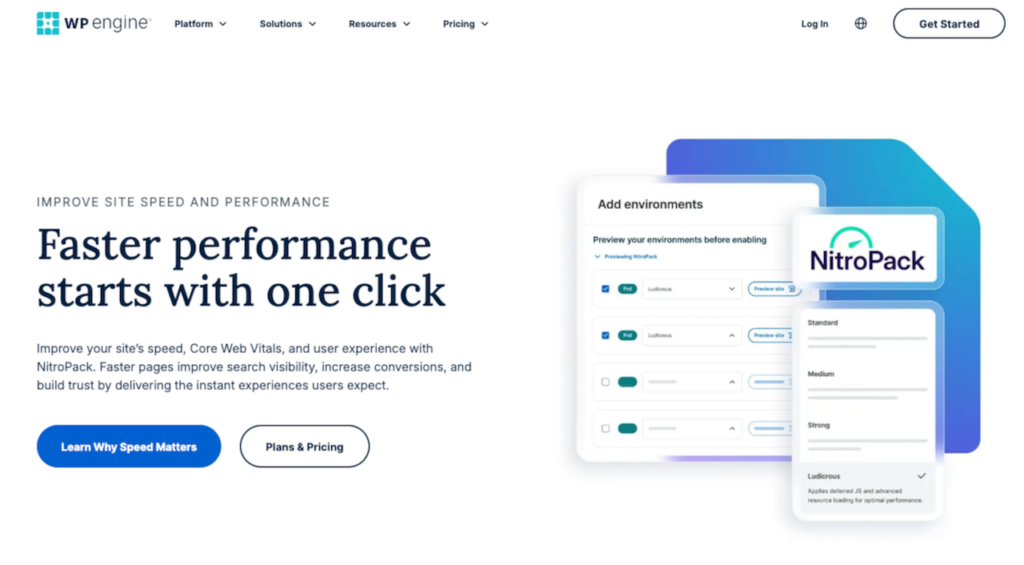
If you’re considering a migration, WP Engine’s ecommerce solution bundles this profile and is purpose-built for WooCommerce. Worth noting: WP Engine customers can add NitroPack as a discounted add-on directly from the WP Engine dashboard, so if you’re already switching hosts, that path gets you the performance optimization layer at a lower cost than buying standalone.
Free fix: update PHP.
Most hosts let you change PHP versions from a dropdown in cPanel or their dashboard. Many older WooCommerce stores still run PHP 7.4, which reached end-of-life back in November 2022 and no longer receives security patches. As of mid-2026, PHP 8.3 and 8.4 are the actively supported branches.
Priority 2. Configure the three caching layers WooCommerce needs
WooCommerce stores need three distinct caching layers, and they live in different places. Here’s what each one does and where it comes from.
1. Page caching
Page caching stores a pre-built copy of the HTML so your server doesn’t have to regenerate it for every visitor. It’s the single biggest speed win for any WordPress site, but it doesn’t apply everywhere: Cart, Checkout, and My Account pages must be excluded from page caching because they display customer-specific data.
Caching plugins handle this exclusion automatically, but the result is that your most conversion-critical pages get zero benefit from traditional page caching. They rely entirely on backend speed and whatever other optimization layers surround them.
NitroPack’s Cart Cache takes a different approach. It uses cookie-based isolation to keep each shopper’s cart state dynamic while still serving cached static assets across the rest of the store. This way browsing stays fast even after a customer adds items to their cart.
2. Object caching (Redis)
Object caching stores reusable database query results in memory, so WordPress and WooCommerce don’t repeat the same lookups on every request. This is especially helpful for the dynamic pages that page caching can’t touch; however, object caching is a hosting-layer feature.
Your host either provides Redis (or Memcached), or it doesn’t, and you can’t just bolt it on cleanly with a plugin. If your TTFB audit showed high server response times and Query Monitor flagged heavy database query loads, exploring Redis with your host is a good next step.
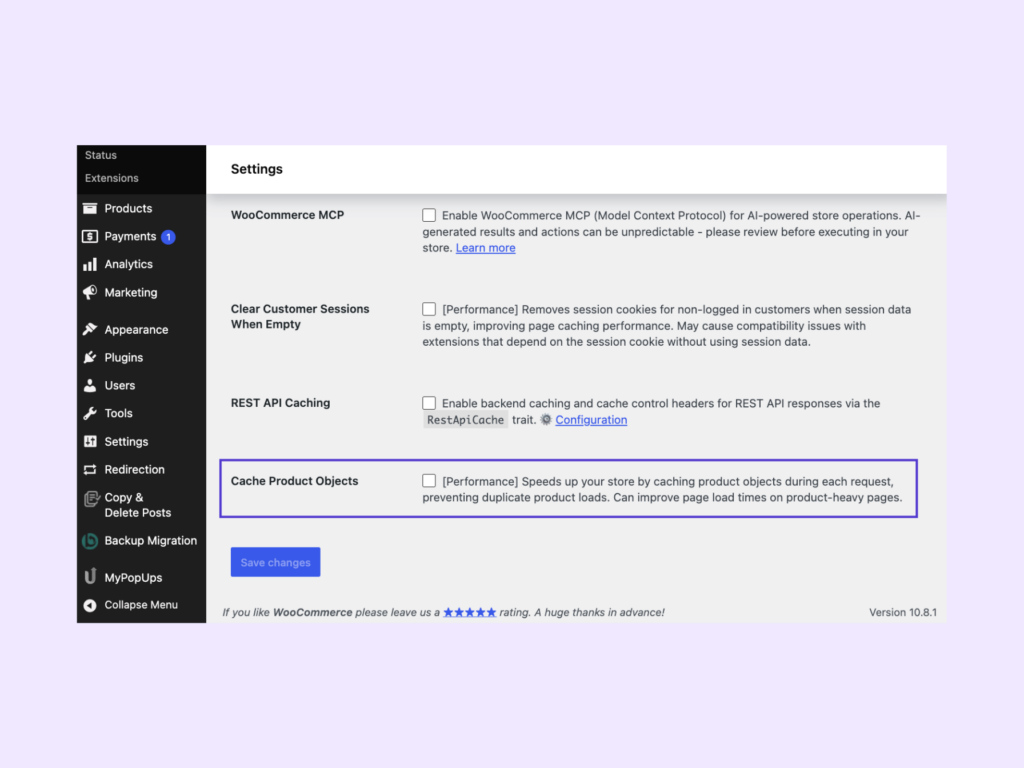
Worth watching: WooCommerce 10.5 added an experimental “Product Object Caching” checkbox (WooCommerce > Settings > Advanced > Features) that reduces redundant product object instantiation within a single request. Disabled by default—not a recommended fix yet, but one to watch.
3. Browser caching
When a returning visitor loads your store, their browser shouldn’t re-download your logo, stylesheets, or product thumbnails. Browser caching headers tell the browser how long to keep local copies of static files before checking the server again.
For versioned assets like CSS and JavaScript bundles, set long cache lifetimes—up to a year—paired with cache busting so updated files are fetched correctly. Dynamic product data like prices and stock should be handled separately.
Why this matters for the stack you build
The three levels of caching all come from different places:
- Page caching comes from a caching plugin or service.
- Object caching comes from your host.
- Browser caching is configured through HTTP headers.
Now, there’s not a single tool that would cover all three at once, but a consolidated service like NitroPack covers the page-caching and browser-caching layers—and includes a CDN (more on that in Priority 4). Redis stays a hosting or infrastructure decision regardless of what else you run.
Priority 3. Optimize product images for LCP and bandwidth
On most product pages, the LCP element is the hero image. That makes image optimization one of the most direct levers you have for improving your largest Core Web Vitals metric.

But don’t assume—open PageSpeed Insights or run a Lighthouse audit and check, because LCP can also be a text block, a banner, or a video element depending on your layout. Once you’ve confirmed what your LCP element is, the fix path is straightforward: Get the right image, at the right size, to the browser as fast as possible.
What good image delivery looks like on a WooCommerce store:
- Modern formats. WebP cuts file size significantly over JPEG and PNG. AVIF compresses even further for browsers that support it, with WebP as the fallback.
- Lazy loading—but not on the hero image. Off-screen product grid images should lazy-load so they don’t compete for bandwidth. Your above-the-fold hero image should never be lazy-loaded, though—it needs to start downloading immediately.
- Width and height attributes on every
<img>tag. Without them, the browser doesn’t know how much space to reserve, and the layout shifts as images load. That’s your CLS score taking a hit. - Responsive markup. Using
srcsetandsizeslets the browser pick an image scaled to the actual display slot, instead of downloading a 2000px-wide source file for a 400px thumbnail. - LCP prioritization. If PageSpeed Insights flags an LCP discovery issue, add
fetchpriority="high"to the hero image or use a preload hint so the browser fetches it earlier in the loading sequence.
Two routes to get there
- The manual stack: Use an image optimizer like ShortPixel or Imagify for compression and WebP conversion, then check your theme to make sure WordPress’s built-in responsive image and lazy-loading behavior is working correctly. Add
fetchpriority="high"or a preload hint selectively—only where the LCP image is genuinely discovered too late. - The automated route: NitroPack for WooCommerce handles the full image pipeline from a single subscription. It includes Adaptive Image Sizing, WebP conversion, LCP Preload, Video Facades, and other important image optimization features.
Priority 4. Add a CDN for static assets and global delivery
A CDN (content delivery network) copies your store’s static files—images, CSS, JavaScript, fonts—to edge servers around the world. When a shopper in Tokyo loads your product page, those assets come from a server nearby instead of traveling all the way back to your origin in, say, Virginia. The result is noticeably faster load times for anyone who isn’t sitting next to your hosting data center.
🤔 What a CDN won’t fix
Cart, Checkout, and other dynamic responses still hit your origin server. A CDN accelerates static asset delivery and, in some configurations, can edge-cache eligible HTML pages too—but it’s not a substitute for the hosting and caching work in Priorities 1 and 2.
CDN is more or less mandatory for stores with customers across multiple regions or countries, but a single-city store with local traffic sees less impact, though the caching and compression benefits are still worth having.
So, what are your options?
- Option 1: DIY with Cloudflare. Cloudflare’s free tier covers static asset caching out of the box. Add Cloudflare APO ($5/month on the free Cloudflare plan, included with paid plans) for full-page edge caching on cacheable routes. You’ll handle the setup yourself—DNS and nameserver configuration, WordPress plugin activation, and any cache or bypass rules your store needs.
- Option 2: Bundled with NitroPack. NitroPack includes a Cloudflare-powered CDN in all paid plans at no extra cost. Same global edge infrastructure, no separate account, no separate bill—it just works alongside the caching and image optimization you set up in the previous priorities.
Priority 5. Clean the database and unload sitewide plugin assets
WooCommerce stores accumulate junk faster than regular WordPress sites, and most of it is invisible until performance starts to suffer.
| Bloat source | What happens | Native fix |
|---|---|---|
| Customer sessions | Every visitor (including bots) generates a database row; piles up fast on busy stores | WooCommerce > Status > Tools > Clear customer sessions (low-traffic window only—removes active carts) |
| Expired transients | Accumulate in wp_options when WP-Cron is unreliable or no persistent object cache exists | WooCommerce > Status > Tools > Clear expired transients |
| Orphaned tables & revisions | Deactivated plugins leave tables behind; years of post drafts inflate database size | WP-Optimize (free)—schedule weekly cleanup |
Per-page asset unloading
Many WooCommerce extensions load their CSS and JavaScript on every single page—including the homepage and blog, where they serve no purpose. Perfmatters and Asset CleanUp (free tier) let you disable specific scripts on specific URLs, so a review plugin’s assets only load on product pages where reviews actually appear.
Heartbeat API
The Heartbeat API (covered in Priority 5)—the same recurring background requests that affect the frontend also drag down admin screens, especially on order and product editor pages.
One thing to be upfront about: NitroPack doesn’t handle database cleanup or per-page script management. These are server-side and database-side jobs. The standard pairing here is WP-Optimize for the database plus Perfmatters for script control and Heartbeat management.
When the WooCommerce admin dashboard is the slow one
A fast storefront doesn’t mean a fast admin. If you’re managing a large catalog and the WooCommerce backend feels sluggish—slow order screens, laggy product editors, delays saving inventory—that’s a separate problem with separate causes.
The two most common culprits:
- The WordPress Heartbeat API sends recurring
admin-ajax.phprequests in the background for features like post locking and autosave. On order and product editor screens, this can generate a steady stream of requests that compete with the work you’re actually trying to do. - Admin-side plugin clutter. WooCommerce’s own marketplace suggestions, analytics widgets, notification bars, and Home screen features all load scripts and panels in the backend. Third-party extensions pile on more.
You have two options to fix these:
- Disable Bloat for WordPress & WooCommerce: Removes or disables WooCommerce admin extras—marketplace suggestions, notification bar, Home screen features, and (optionally) the WooCommerce Admin/Analytics components
- Perfmatters: Throttles or disables Heartbeat per context—frontend, admin, or post editor—so it only runs where needed
Worth noting: Frontend optimization tools—NitroPack included—don’t touch admin speed. NitroPack handles the visitor-facing half: Core Web Vitals, page load times, conversion impact. Admin slowness is a backend problem that needs the plugins above.
Consolidating your WooCommerce performance stack
By this point, your performance stack might include a caching plugin, an image optimizer, a CDN, a script manager, and a database cleanup tool. That’s a lot of moving parts to keep updated and compatible with each other.
We built NitroPack to replace most of that list with a single subscription. You’ve already seen where it fits: Cart Cache for dynamic WooCommerce pages (Priority 2), Adaptive Image Sizing and LCP Preload (Priority 3), and a bundled Cloudflare CDN at no extra cost (Priority 4). Database cleanup and script management stay separate—those are server-side jobs—but everything else runs from one place.
You can get NitroPack as a standalone subscription or, if you’re migrating hosts, as a discounted add-on from inside the WP Engine dashboard.
OfficeRnD reduced LCP from 7.03s to 2.28s and saw a 12.5% conversion lift within two months. Across the broader market, NitroPack holds the highest Core Web Vitals pass rate (54%) among optimization tools per 2026 HTTP Archive desktop data.
Want to test before committing? The NitroPack free plan gives you 1,000 pageviews/month with no credit card required.
FAQs about WooCommerce speed optimization
Does updating PHP actually speed up WooCommerce?
Yes. Newer PHP versions process requests faster and use less memory. Moving from PHP 7.4 to 8.3+ delivers a noticeable improvement at zero cost—most hosts let you switch from a dashboard dropdown. Test on staging first to catch any plugin incompatibilities before applying the change to production.
Do I need a CDN if my customers are mostly local?
A CDN makes the biggest difference when your shoppers are spread across multiple regions. If most of your traffic is local, the latency improvement will be smaller, but the caching and compression benefits are still worth having, even for single-country stores.
What are the most important plugins for WooCommerce performance?
That depends on whether you want to build a stack or simplify one. The DIY route typically means a caching plugin, an image optimizer, a CDN, a script manager like Perfmatters, and a database cleanup tool like WP-Optimize. The simpler route replaces the first three with a single service like NitroPack. Database cleanup and script management stay separate either way.
Test NitroPack yourself
By submitting, you agree to the WP Engine Terms of Service and acknowledge the Privacy Policy.