
TL;DR:
- GTmetrix runs free speed tests that grade your site against six lab metrics and Google’s Core Web Vitals.
- Fix one thing at a time, re-test with identical settings, and cross-reference with PageSpeed Insights before declaring victory.
- The report is split into eight tabs: Summary, Performance, Structure, CrUX, Waterfall, Video, History, and Alerts.
- Performance tells you what is slow. Structure tells you why. Waterfall shows you where.
- Lab scores and CrUX field data often disagree, and when they do, CrUX is what Google uses for ranking.
- Most bottlenecks fall into four buckets: render-blocking assets, slow server response, layout shift, and unoptimized images.
You run a speed test. The page loads, the report appears, and you’re staring at a dashboard with eight tabs, six metrics, a percentage grade, and a chart that looks like a barcode 🤔.
Now what?
Most people stop right here. They screenshot the grade, send it to a developer, and hope for the best.
That’s the gap I want to close: once you can read a GTmetrix report properly, you won’t have to guess what to fix or prioritize what matters most to improve your site’s speed. Let’s go!
Before You Run a GTmetrix Test

The free account gives you three tests per day from a single Vancouver location with no scheduled monitoring.
That’s enough for spot checks, but if you’re testing performance over time, testing from your customers’ actual region, or featuring a significant number of ads, you’ll hit the ceiling fast.
In reality, three settings affect your results more than anything else.
- First, test location. Pick the region your audience actually browses from. A site that scores well from Vancouver can crawl in São Paulo, and that’s the score that matters for your Brazilian users.
- Second, connection speed. Testing on an unthrottled connection produces numbers no real visitor will ever see. Use Cable for desktop and 4G for mobile to mirror what people actually experience.
- Third, device emulation. Desktop and mobile reports come from different rendering engines with different network throttling, and they regularly produce wildly different scores. If your traffic is 70% mobile, a clean desktop grade isn’t telling you much.
One test is a snapshot, not a baseline.
Run three tests in the same hour with identical settings, then average them. Anything wider than a 5% spread between runs means something’s flaky on your end (or the test server’s), and you should investigate before drawing conclusions.
For a stable baseline, repeat the process on a different day at a different time. Weekly cadence works for a stable production site; daily makes sense during an active optimization project.
If you’re managing a live site and need scheduled monitoring, geographic variety, or longer history retention, a paid plan starts to make sense. If you only need an ad-hoc diagnosis, Chrome DevTools gives you a waterfall and recording for free, just without the grading layer on top.
Compare your GTmetrix grade against an optimized demo


By submitting, you agree to the WP Engine Terms of Service and acknowledge the Privacy Policy.
GTmetrix Report Walkthrough: What Each Tab Is For
The report is split into eight tabs, each answering a different question. Knowing which tab to open saves you from guessing your way through a fix.
To make things easier for you, I picked this BBC page as our lab rat for this instance.
Summary
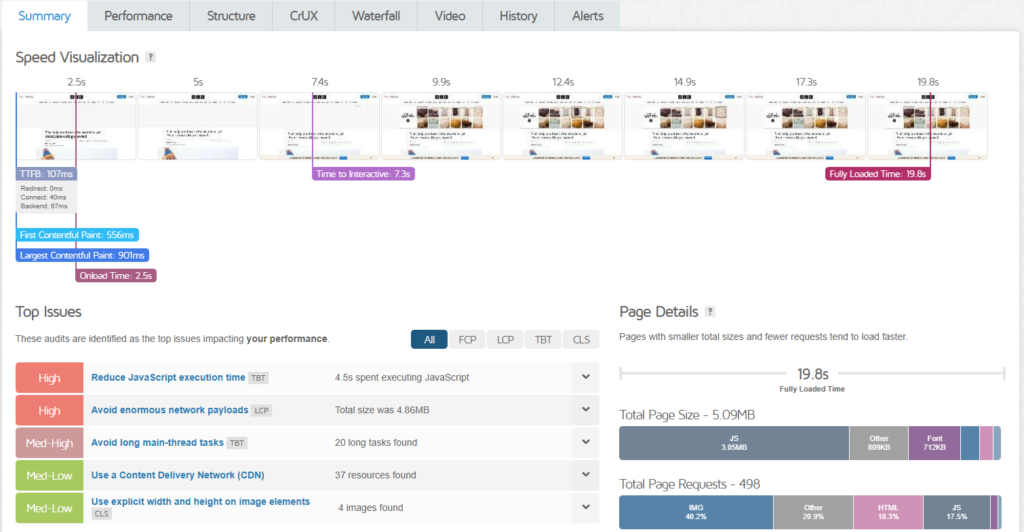
This is the dashboard view:
- a composite grade
- the three Core Web Vitals,
- and a quick visual of how your page rendered.
Use it for client snapshots or quick health checks. If anything’s red here, note which metric and go deeper into the Performance or Structure tabs.
Performance
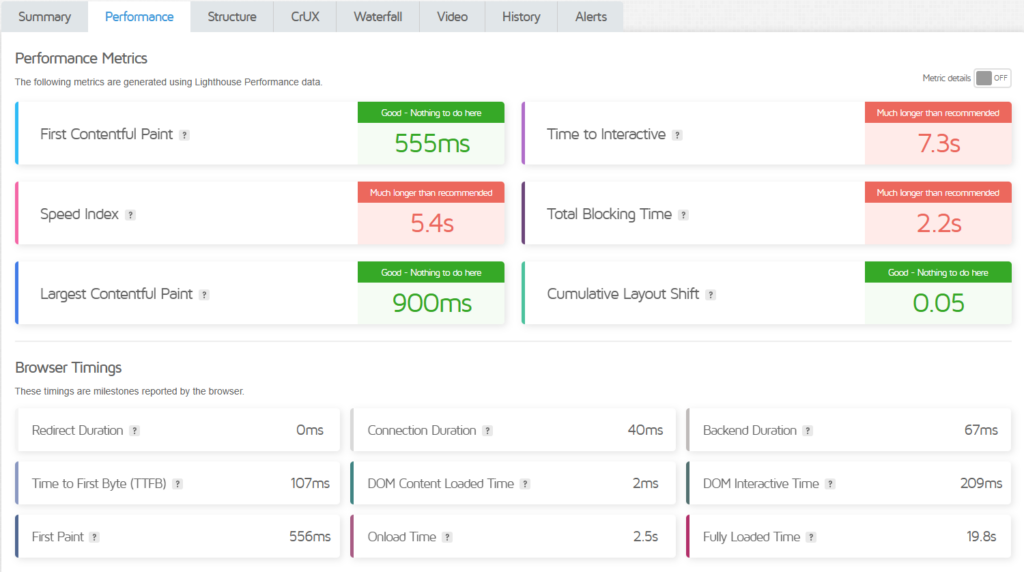
The six lab-measured metrics live here:
- Largest Contentful Paint (LCP): Measures how long it takes for the main content of the page to fully load and become visible to users.
- Total Blocking Time (TBT): Shows how much time the page is blocked by heavy scripts, preventing users from interacting smoothly.
- Cumulative Layout Shift (CLS): Measures how much the page layout unexpectedly moves while loading (e.g. buttons or text shifting around).
- First Contentful Paint (FCP): Indicates how quickly the first visible content (text, image, etc.) appears on the screen.
- Time to Interactive (TTI): Measures how long it takes before the page becomes fully interactive and responsive to user actions.
- Speed Index: Shows how quickly the visible parts of the page are displayed during loading.
Each is color-coded against Google’s thresholds (green is good, yellow needs work, red is poor). Hover over any metric for a plain-English explanation. This tab tells you what is slow.
Important
Don’t confuse it with the CrUX tab, which shows real-world data instead of lab simulations.
Structure
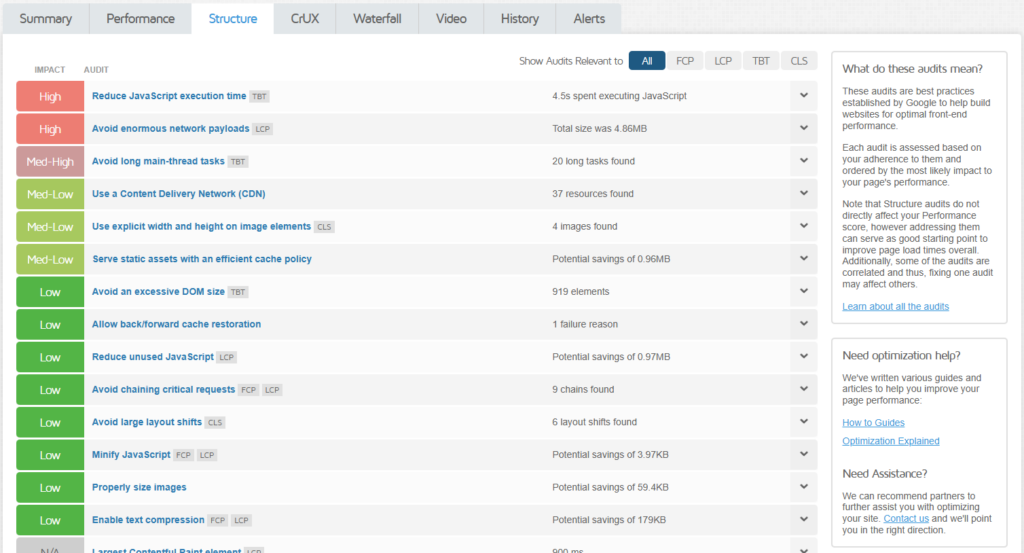
Here, you find a ranked list of technical issues, sorted by their impact on your scores. Essentially, this tab tells you why your site is slow.
Each item includes a description, the affected resources, and an estimated savings figure. Resist the urge to chase 100%.
Some audits are easy wins, others would take a week of work for a 0.1-second gain. Prioritize items that intersect with your worst Core Web Vitals.
CrUX
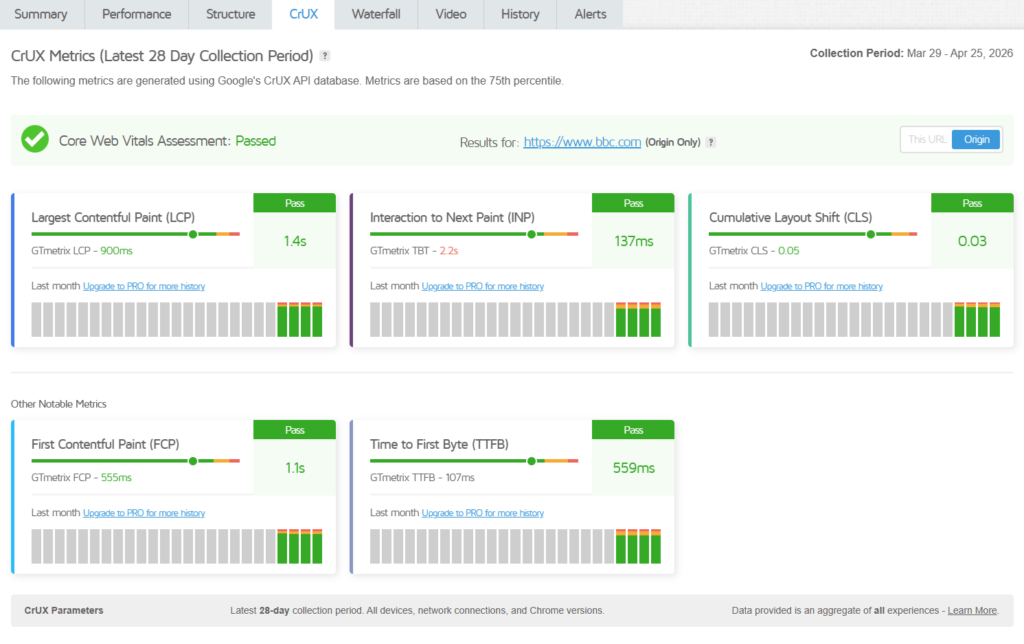
This tab refers to the performance metrics measures in real-life scenarios, e.g. data from users that have visited your website for real over the past 28 days.
If your lab scores look great but CrUX looks rough, your real users are seeing something the test environment isn’t, often a regional CDN gap or an issue specific to a popular device.
When the two disagree, trust CrUX for SEO purposes since Google uses field data, not lab scores, for ranking.
Waterfall
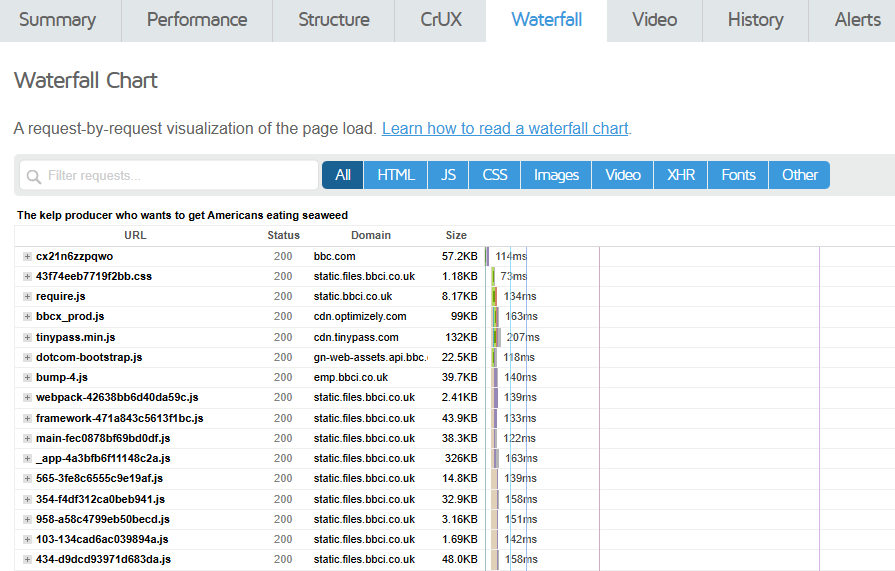
The waterfall chart houses every network request your page made, plotted on a timeline with color-coded segments showing where the time went. This is the most powerful tab in the report and the one I’ll spend more time in a bit.
If you only learn one tab properly, make it this one.
Video
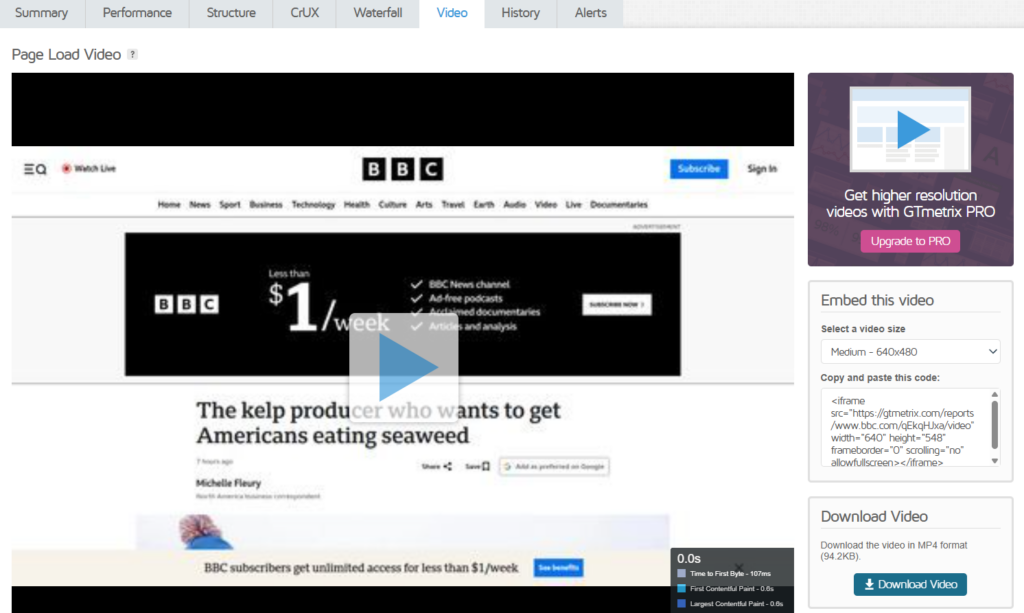
This tab is dedicated to frame-by-frame recordings of the page loading.
Its main use is diagnosing layout shift. CLS is hard to wrap your head around as a number, but it’s obvious when you watch a video and see the hero image jump down 200 pixels because a banner finally loaded above it.
History
Look at this as a trend chart of all your past tests for that URL.
It comes in handy when you want to catch regressions after a deploy (‘our LCP doubled last Tuesday, what shipped?’) and prove progress to clients or management. The free plan stores a limited history, so if this matters to you, think about upgrading to a paid plan.
Alerts
Often overlooked, but quite powerful. This tab is for passive monitoring that fires when a metric crosses a threshold or a new audit issue appears.
Set it once on your most important pages and let it run. It’s the difference between catching a regression in 24 hours versus three weeks after a customer complains.
Reading the Waterfall Chart
The waterfall is the most complex tab and the one that earns its keep when something’s actually broken.
Every horizontal bar is a network request, and every bar is split into colored segments showing where the time went.
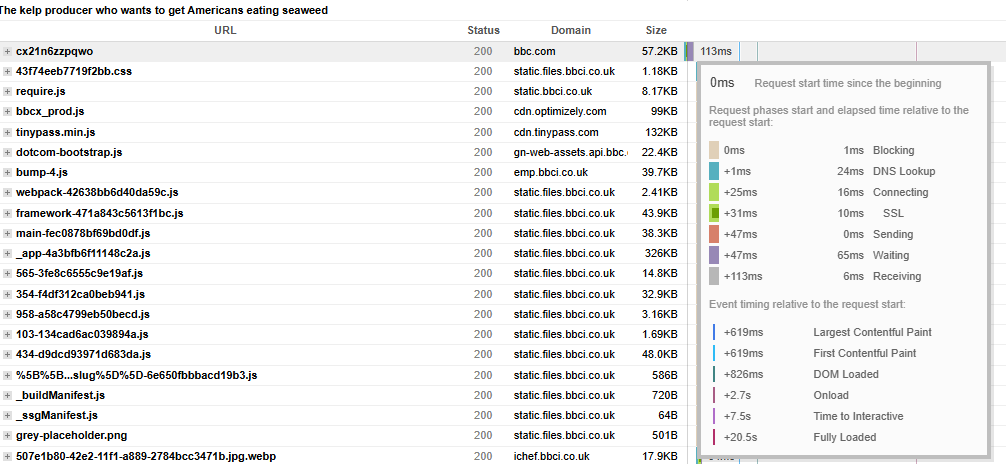
- Yellow is waiting, also called TTFB. The browser sent the request and is sitting around waiting for the server to respond. Long yellow bars mean the server is slow, the database is slow, or there’s no caching layer in place.
- Green is downloading. Long green bars mean the file itself is too large.
- Purple is SSL handshake.
- Blue and orange cover DNS lookup and TCP connection, which only matter for the first few requests to a domain.
Two patterns are worth recognizing.
- A blocking chain is when a render-blocking script triggers another script, which triggers another, and your page can’t paint until the whole chain resolves. You’ll see it in the waterfall as a staircase of dependent requests. The fix is usually to defer or async the scripts that don’t need to run before paint.
- A staircase pattern of sequential requests that should be running in parallel often points to bad domain sharding or HTTP/1.1 keepalive issues. Modern HTTP/2 should make most of these obsolete, but legacy stacks still produce them.
Use the filter row at the top to isolate by file type.
JS, CSS, images, fonts, and XHR each get their own filter. If your TBT is high, filter to JS and sort by blocking time before you optimize your JavaScript. If your LCP is bad, filter to images and find the largest one in the critical path.
Common Bottlenecks and Where to Find Them
Most slow sites fail in predictable ways. Here’s the symptom-to-fix shortlist:
- High LCP. Check the Performance tab to confirm, then jump to the Waterfall and filter by images. The LCP element is usually a hero image that’s either too large, not preloaded, or served from a slow origin. First fixes: compress and serve in WebP or AVIF, add a preload tag for the LCP image, and make sure browser caching is enabled.
- High TBT. Filter the Waterfall by JS and sort by blocking time. The worst offenders are usually third-party scripts (chat widgets, analytics, A/B testing) that block the main thread for hundreds of milliseconds. Defer non-critical scripts, remove anything you’re not actively using, and consider self-hosting third-party scripts where the license allows.
- High CLS. Open the Video tab and watch the load. The shifts will be visible. Common causes are images without explicit dimensions, web fonts swapping in late, and ads or banners loading after the rest of the page. Add width and height attributes to images, preload critical fonts, and reserve space with min-height on dynamic containers.
- High TTFB. Look at the first request in the Waterfall and check its yellow bar. If it’s over 600ms, you’ve got a server-side problem. The fix could be server-side caching, a CDN, a slow database query, or an undersized hosting plan. Diagnosis usually requires server logs, but the GTmetrix data tells you where to start looking.
- Good lab score, bad CrUX. Re-test with throttled connection settings closer to what your real users have. Then check whether your CDN actually serves the regions where most CrUX data originates. A site that’s fast in North America and slow in Southeast Asia will show this pattern.
If you’re consistently fighting all five at once, an integrated optimization layer like NitroPack handles caching, image optimization, JS deferral, and CDN delivery in a single install rather than treating each as a separate engineering project.
Skip the long optimization sprint.
Get started with NitroPack today →
How to Use GTmetrix Reports to Validate Performance Fixes
Optimization without measurement is guesswork. Two principles keep your tests honest.
- Fix one thing at a time and re-test with identical settings. Same location, same connection profile, same device, same time of day if possible. Change only one variable per cycle so you know which fix produced which result. If you bundle three changes into one deploy and the score moves, you don’t know which one did the work.
- Prioritize by user impact, not score weight. A 5-point Structure improvement that doesn’t touch any Core Web Vitals is cosmetic. A 0.4-second LCP reduction on your highest-traffic page is real money. Use the History tab to confirm the fix held over time, not just in the post-deploy spike.
Once GTmetrix shows the improvement, cross-reference with PageSpeed Insights and your own analytics. If your lab grade went up, but bounce rate didn’t budge, you optimized something users don’t actually feel. The validation isn’t done until both tools agree, and the field data follows.
FAQs about GTmetrix Reports
Why does my GTmetrix score differ from PageSpeed Insights?
They use different test locations, different network throttling, and different rendering pipelines. PSI also weighs CrUX field data more heavily by default. A 10 to 15 point gap is normal. A 40-point gap means something specific to one environment is off.
My grade is an A, but my site still feels slow. Why?
Lab grades don’t capture every aspect of perceived performance. Cursor lag, scroll jank, and slow server-side interactions (form submissions, search) won’t show up in a GTmetrix report. Profile in DevTools for those. Also, check your CrUX tab to see if real-user data tells a different story.
How often should I re-test?
For a stable production site, weekly is plenty. After any significant deploy, immediately. If you’re running an active optimization project, daily during work and weekly afterward to confirm the fixes held.
Why does my score change between tests on the same day?
Network conditions, server load, and third-party script behavior all vary minute to minute. That’s why averaging three tests is the baseline rule, not one.
Does GTmetrix score directly affect Google rankings?
No, only the Core Web Vitals do, and Google measures those from CrUX field data, not GTmetrix. A high GTmetrix grade is a strong proxy, but the field data is what Google actually reads.
How do I get the most out of the free plan’s 3 daily tests?
Use them on your highest-impact page (usually the homepage or top landing page), test in the region with the most of your traffic, and time the runs to land before, during, and after the change you want to validate.