TL;DR
CSS animations can enhance a website’s visual appeal but may negatively impact performance, speed, user experience, Core Web Vitals, and SEO. To keep animations smooth and efficient, use lightweight and optimized CSS animation properties that fill your website with engaging designs. Additionally, to maintain a seamless user experience, do regular tests and monitor performance.
Transforming a boring website into an interactive webpage, which attracts visitors and retains their attention, is what every site owner wants.
However, adding hover animations, infinite loading animations, animated text writing, or animation with offset motion blur is a recipe for performance issues.
In this article, we review how to add CSS animations to your WordPress website without sacrificing speed and Core Web Vitals. And while we’re at it, we go over common misconceptions, mistakes, and best practices for optimizing CSS animations.
Let’s get right to it.
Is It Better to Use CSS Animations or JavaScript Animations?
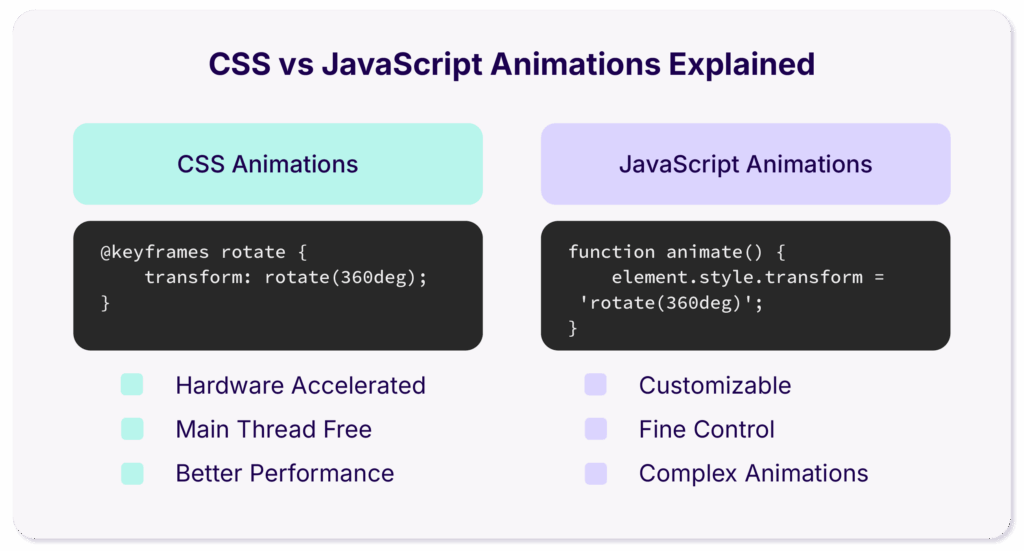
The short answer is that CSS animations are a better choice because they are more efficient. If you want a website that loads quickly, runs smoothly, and handles simple animations like fades or rotations effortlessly, go with CSS. They’re hardware-accelerated, don’t block the main thread, and offer better performance for most use cases. Save JavaScript for when you need fine control or complex, interactive animations.
Head-to-Head: CSS animations vs JavaScript animations
This table highlights CSS animations and JavaScript animations comparison on various features:
| Feature | CSS Animations | JavaScript Animations | Winner |
|---|---|---|---|
| Performance | Uses GPU for smoother, efficient rendering; doesn’t affect the main thread significantly | It relies on the CPU and can impact performance, especially if unoptimized | CSS Animation |
| Ease of Implemention | Easy to set up with simple syntax in stylesheets | Requires more code, setup, and can become complex | CSS Animation |
| Browser Optimization | Optimized directly by browser engines, especially for properties like transform and opacity | Less optimized natively, often requires external libraries for smooth transitions | CSS Animation |
| Responsiveness | Responsive by default with media queries, can adjust based on screen size easily | Needs extra coding for responsive behaviors, often requires additional conditions | CSS Animation |
| Accessibility | Easily supports prefers-reduced-motion for accessibility; users can turn off motion | Harder to control accessibility settings without extra JavaScript code | CSS Animation |
| File Size | Lightweight and concise, keeping page load times minimal | Larger file size due to script files, which can slow down loading | CSS Animation |
| Compatibility | Supported across most modern browsers with minimal compatibility issues | Compatible but may vary in rendering quality across different devices | CSS Animation |
| Animation Control | Ideal for simple animations (fades, transforms); some limitations on fine control | Offers full control and complex sequencing options, ideal for advanced animations | Depends on needs |
| Best Use Case | Hover effects, fades, transitions, loading spinners | Complex, multi-step animations like 3D effects, game animations | CSS for simplicity |
However, let’s not forget that even though CSS animations are better on paper when implemented improperly, they can affect your:
- Core Web Vitals: by slowing down page speed times or causing layout shifts;
- Accessibility: by overwhelming users with motion sensitivity or cognitive disabilities, making your site less inclusive;
- SEO results: by degrading page performance, increasing bounce rates, and reducing dwell time which signals to search engines that your content may not meet user needs.
Stick till the end of the article to learn how to correctly add CSS animations to get all of the benefits and none of the regressions.
Step-by-Step Guide to Adding CSS Animations on WordPress
Here is a very easy 5-step process to add fully functional web animations to your website.
Step 1: Choose the right animations
Before diving into the technical aspects, it’s crucial to be selective about the animations you implement. Overloading your site with too many animations or complex transitions can bloat the code and affect performance.
Here are the best practices you can use to choose the right set of animations for your website :
- Define the purpose of each animation
- Use subtle animations like fades, slides, and hover effects.
- Focus on enhancing user experience, avoiding distractions
- Limit animations to key sections like CTAs, images, or headers.
- Choose lightweight animations to maintain load speed
- Trigger animations on scroll or hover for efficiency
- Optimize animations for mobile screens
- Keep animation durations short and natural
- Stick to animating properties like opacity and transform for better performance
- Test animations on various devices and browsers
- Avoid continuous or infinite animations unless necessary (e.g., loading spinners).
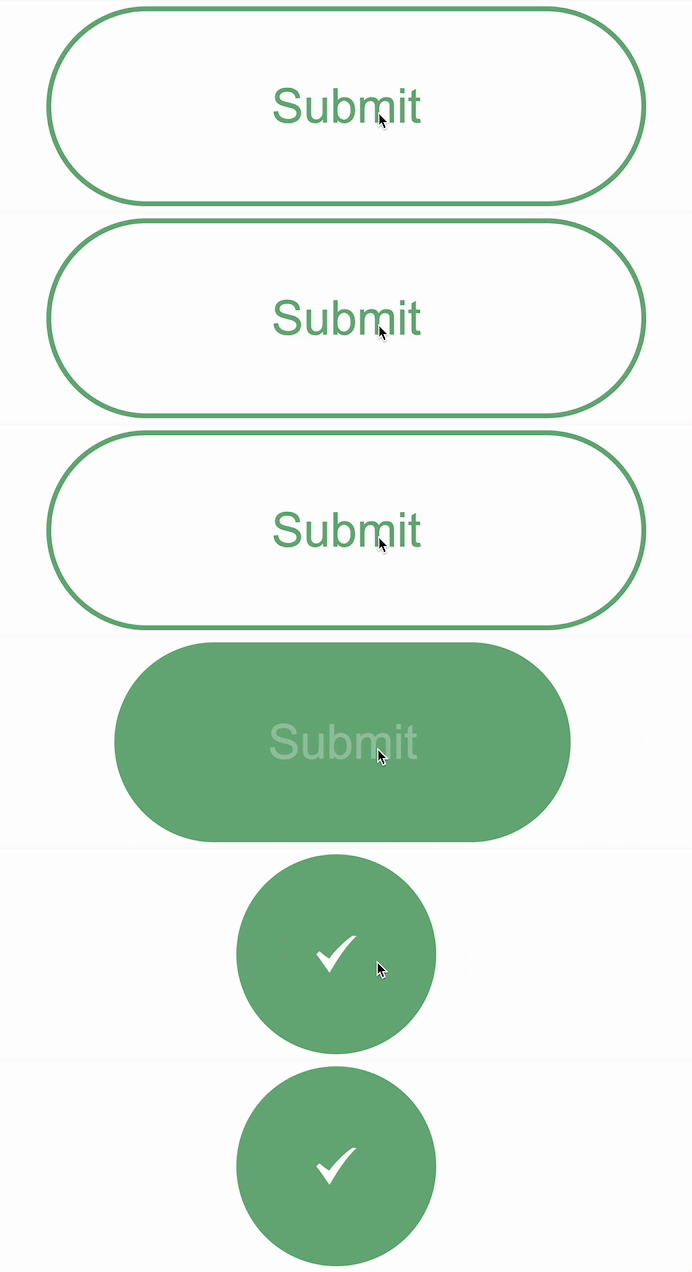
By following these tips, you will successfully find the best places to add animations to your website.
Step 2: Use a Lightweight WordPress theme
The performance of CSS animations often depends on how well-optimized your theme is. A lightweight, well-coded WordPress theme ensures that any CSS you add doesn’t slow things down.
Important
The number of elements users load during the page request is a real issue. It increases your website’s unnecessary loading time. You can test for that before personalizing your themes with Gtmetrix. Use tools to check the best lightweight WordPress theme for Core Web Vitals.
Recommended themes:
- Astra: Known for its speed and performance.
- GeneratePress: Offers flexibility with minimal bloat.
- Neve: Lightweight and perfect for fast-loading websites.
Apart from that, if you want to add some personalized brand touch to your website, you can get help from a WordPress development company to develop a custom, lightweight WordPress theme that will boost your WordPress website performance.
Step 3: Add CSS animations
You have two ways to add the CSS animations: manually and through an animation plugin. You can pick any one of them based on your resources and skills.
Adding Animations Manually
If you want to keep control over your site’s code and performance, adding animations manually through CSS is a great option. Here’s how:
- Access your theme’s custom CSS
- From your WordPress dashboard:
- Navigate to Appearance > Customize.
- Scroll down to Additional CSS. This is where you’ll add your animation code.
Here’s a basic example of how to add a fade-in effect to an element:
/* Keyframe for the fade-in effect */
@keyframes fadeIn {
0% {
opacity: 0;
}
100% {
opacity: 1;
}
/* Applying the animation to a class */
• fade-in-element { animation: fadeIn 2s ease-in-out;
}
Now, you can apply this class (fade-in-element) to any element in your WordPress editor. For instance, in the Gutenberg editor:
- Select the block you want to animate.
- Under Advanced > Additional CSS Class, add the class fade-in-element.
The element will now fade in as the page loads.
| Alternatively, use animation plugins For those who aren’t comfortable with coding or want to simplify the process, several WordPress plugins make adding CSS animations easy — no coding required. However, choosing lightweight plugins that won’t bog down your site is crucial. |
Step 4: Optimize animations for performance
Optimizing your CSS animations for performance is essential once you’ve added them. Following are some tips to run your web animations smoothly:
- Use hardware acceleration: Ensure your animations are hardware-accelerated by using transform and opacity properties, which trigger the GPU, leading to smoother transitions. Example:
.animated-element
transform: translateX(0);
transition: transform 1s ease-in-out;
}- Minimize reflows and repaints: Avoid animating properties like width, height, margin, and padding, as these can cause the browser to recalculate the layout, slowing down performance.
- Compress CSS files: If your animations are part of a larger stylesheet, make sure to minify the CSS to reduce file size and speed up load times.
- Lazy load off-screen animations: For elements that are further down the page, consider using lazy loading to defer the animation until the user scrolls to that section.
As mentioned, all the tips are industry practices for adding high-performing animations on-site. So, if you want to add really mesmerizing animation without compromising the quality of your website, follow them.
Step 5: Test and monitor site speed
After optimizing CSS animations, it’s crucial to ensure your site speed remains optimal. Use tools like Google PageSpeed Insights and GTmetrix to test the performance of your site.
Here is a checklist to review your website speed after adding CSS animations:
- Run tests on tools like Google PageSpeed Insights, GTmetrix, or Pingdom to check load time, animation performance, and page scores.
- Analyze the First Contentful Paint (FCP)
- Measure Largest Contentful Paint (LCP)
- Evaluate Cumulative Layout Shift (CLS)
- Calculate Interaction to Next Paint (INP)
- Test Animation Impact on Time to Interactive (TTI)
- Check page load time across devices
- Monitor Frame Rate (FPS) for smoothness
- Test animations on different browsers
- Use lazy loading or deferral for non-essential animations
- Analyze bandwidth impact
If you notice any performance regressions, revisit your animations and see if any can be optimized.
How to Optimize CSS Animations for Core Web Vitals
To ensure CSS animations don’t negatively impact the speed and performance of your WordPress site, follow these best practices:
Tip 1: Optimize animation properties
To ensure that CSS animations don’t impact your WordPress site’s speed:
- Use lightweight properties like opacity, transform, and scale for animations; these don’t trigger reflow and repaint processes, helping animations run smoothly and efficiently.
- Avoid heavy properties such as width, height, top, left, margin, and padding, as they can trigger layout recalculations, which may slow down your site.
Keeping animations optimized with these simple tweaks helps maintain optimal performance while adding engaging visual effects.
Tip 2: Stay away from continuous animations
Limit animations to essential elements like call-to-action buttons or headers to avoid overloading the device’s CPU or GPU. Also, steer clear of continuous animations, as loops or infinite effects can increase CPU usage and slow down performance.
Tip 3: Optimize with the will-change property for better LCP
Adding “will-change: transform” to animated elements can help browsers optimize rendering by “preparing” for the change. However, use it sparingly to avoid overloading memory.
Tip 4: Minimize animation duration
Keep animations under 500ms when possible, and avoid lengthy transitions that can bog down the page load experience.
Tip 5: Defer animations until after page load
To improve Core Web Vitals, defer animations until after the page loads by using animation delay, ensuring that essential content appears first without delay. Additionally, lazy load animations should be used whenever possible; as a result, they only activate when users scroll to relevant sections.
Tip 6: Use Long Animation Frame to improve INP
For a website to appear smooth and fast, the browser needs to be able to update its content quickly. However, running many CPU-heavy tasks will block the browser’s main thread, delaying the rendering process and resulting in long animation frames.
Tip 7: Utilize the prefers-reduced-motion media Query
Use @media (prefers-reduced-motion: reduce) to disable or simplify animations for users who prefer reduced motion. This helps with accessibility while also improving performance for those users.
Now, let’s look at some mistakes people make while adding CSS animations to WordPress.
Mistakes to Avoid When Adding CSS Animations in WordPress
When adding CSS animations to a WordPress website, website owners should be mindful of inevitable common mistakes that can negatively impact performance, user experience, and SEO.
Mistake 1: Overusing animations
Adding too many animations on a single page or across the website. Overloading a site with animations can overwhelm users, cause distractions, and increase page load times.
😎 How to avoid it
Use animations sparingly and strategically on important elements like calls-to-action, buttons, and images to highlight key areas without overwhelming the visitor.
Mistake 2: Using non-optimized CSS animations
Animating properties that trigger layout reflows or repaints (like width, height, margin, etc.). Animations on properties that require the browser to recalculate the layout can slow down the website and reduce the user experience.
😎 How to avoid it
Stick to animating properties like opacity and transform, which are GPU-accelerated and do not trigger layout recalculations.
Mistake 3: Not testing animation performance
Adding animations without testing how they affect website speed and performance. Even subtle animations can negatively affect page load times and cause delays in the visual content display, hurting Core Web Vitals like Largest Contentful Paint (LCP).
😎 How to avoid it
After adding animations, test your website’s performance using tools like Google PageSpeed Insights, GTMetrix, or Lighthouse to ensure they don’t significantly slow down the site.
Mistake 4: Not considering mobile optimization
Implementing desktop-optimized animations that don’t work well on mobile devices. Mobile users may experience a laggy or jarring experience if animations are not responsive, resulting in higher bounce rates.
😎 How to avoid it
Ensure your animations are optimized for mobile devices by testing them across different screen sizes and using media queries to disable or simplify animations on smaller screens.
Mistake 5: Ignoring accessibility
Using fast or continuous animations without considering how they may affect users with motion sensitivity or visual impairments. Some users may find fast or flashy animations distracting or even harmful, leading to a poor user experience.
😎 How to avoid it
Provide options for users to disable animations using the prefers-reduced-motion media query and avoid excessive or rapid movement in animations.
@media (prefers-reduced-motion: reduce) {
 .animated-element {
   animation: none;
 }
}
Mistake 6: Using heavy animation libraries unnecessarily
Loading large animation libraries like Animate.css or JavaScript libraries like GreenSock (GSAP) when only a few basic animations are needed. These libraries can add unnecessary weight to your website’s CSS and JavaScript files, causing slower load times.
😎 How to avoid it
Write custom, lightweight CSS for your animations instead of relying on bulky libraries unless your website specifically needs complex animations.
Mistake 7: Forgetting to minify CSS
Adding uncompressed or unminified CSS files to the website. Unminified CSS can add extra kilobytes to your site, resulting in slower page load times.
😎 How to avoid it
Always minify CSS files to reduce file size. There are plugins, like NitroPack, that can help with CSS minification and optimization.
Mistake 8: Using animations that distract from content
Creating animations that distract users from the main content or make it harder to interact with the page. Excessive or poorly timed animations can pull focus away from important content, causing frustration and lowering conversions.
😎 How to avoid it
Ensure animations are functional and enhance the user experience. They should guide users through the content, not distract them from it.
Mistake 9: Not accounting for browser compatibility
Failing to check whether your animations work across all major browsers, including older versions. Certain animations might not display correctly on specific browsers, leading to inconsistent user experiences.
😎 How to avoid it
Test your CSS animations across different browsers and use vendor prefixes (e.g., -webkit, -moz) when necessary to ensure compatibility.
.element {
-webkit-animation: fadeIn ls ease-in;
-moz-animation: fadeIn 1s ease-in; animation: fadeIn 1s ease-in;
}
Mistake 10: Ignoring page load prioritization
Animating elements above the fold (visible on the initial page load) can delay the rendering of critical content. Page speed is a key ranking factor in search engines, and animations on elements above-the-fold can slow down how quickly the page is displayed, negatively affecting SEO.
😎 How to avoid it
Limit animations to non-essential elements or those below the fold, and consider using lazy loading techniques for off-screen animations.
CSS animations can enhance your WordPress website’s interactivity and visual appeal, but they need to be used wisely. By avoiding these common mistakes, you’ll create a website that’s visually engaging as well as fast and accessible for all users.
Examples of High-Performance CSS Animations
Here are a few examples of CSS Animation that you can try to create something amazing.
Example 1: Only CSS animation #01
To add a unique and lightweight animation without relying on JavaScript, Only CSS Animation #01 is a fantastic example built by Hisami Kurita (hisamikurita). This animation demonstrates the power of CSS alone to create stunning effects with just HTML and CSS. It showcases a simple yet eye-catching animation that can be applied to various elements like buttons, text, or images, helping them stand out on your webpage without needing any complex scripts.

Example 2: Pulse animation
If you’re looking to grab the attention of your visitors and create a dynamic effect, pulse animation is one of the best CSS animation techniques. It creates a subtle yet impactful effect by gradually increasing the size of an element and then reducing it back to its original size, making it seem like the element is “pulsing.” This effect is often used for call-to-action buttons, icons, and key elements on a webpage, helping them stand out without overwhelming the user.
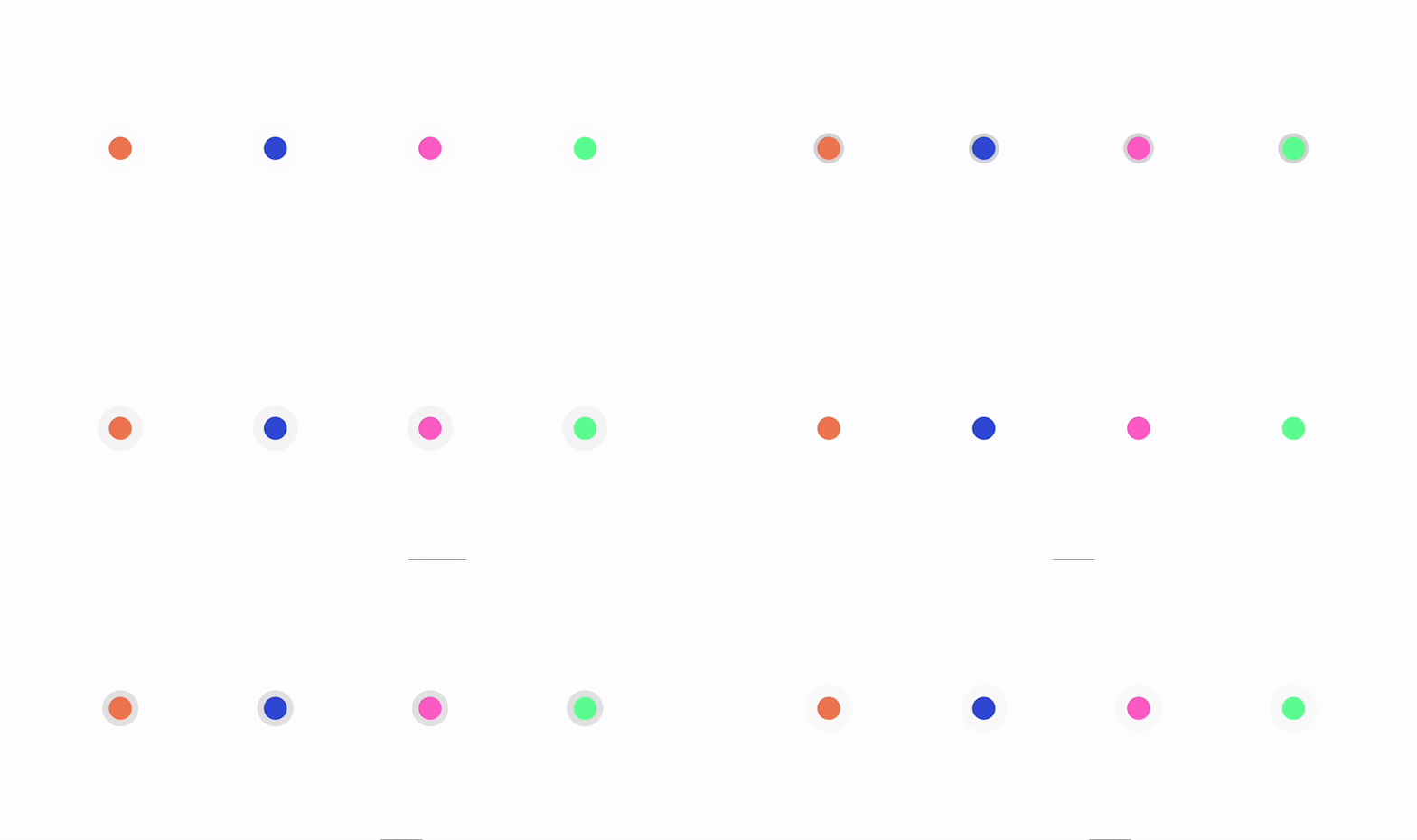
Example 3: Hover effects
Adding Hover Effects to your elements is another great website animation idea, and you can try it. You can use Olivia Ng’s “Hover Effect for Headers”. It demonstrates how a few CSS keyframes can make headings stand out and provide an engaging user experience with minimal code. The hover effect allows visitors to interact with the title text, creating an engaging, modern feel on your website.

Example 4: Loading spinners
When it comes to providing feedback to users during data loading, loading spinners are a well-recognized and effective visual cue. Using CSS animations, you can create sleek, engaging spinners that indicate the process is ongoing. These spinners are universally understood, light on code, and offer a clean way to improve user experience, especially when waiting for content to load.
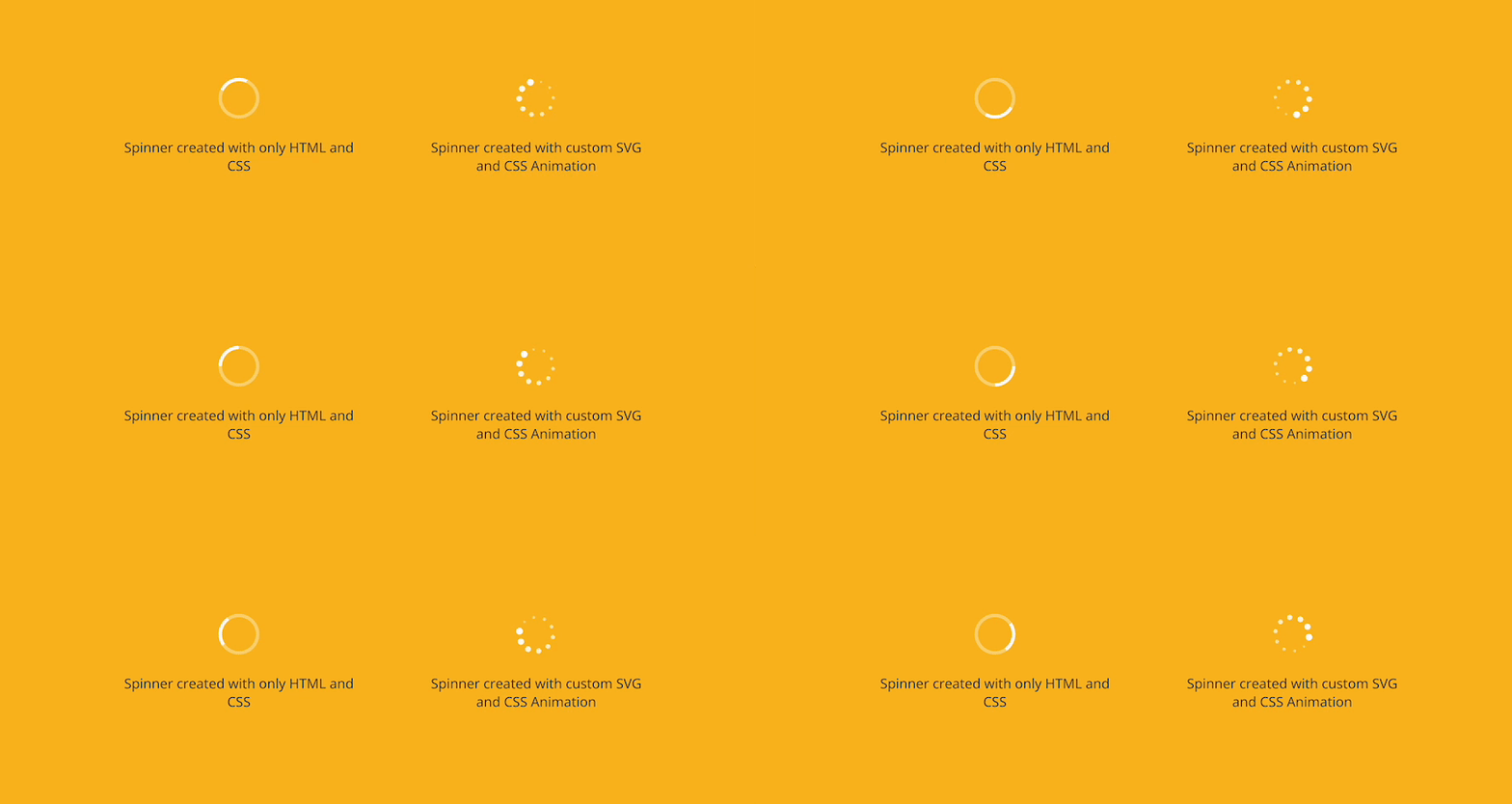
Example 5: Fade-In animations
Fade-in animations are one of the most effective ways to draw attention to elements on your website, whether they’re images, text, or even a background. This smooth transition effect gradually makes elements appear or disappear, enhancing the overall user experience. The fade-in effect’s subtlety and elegance can significantly improve your page’s aesthetic, and it works particularly well for showcasing important content as it enters the user’s view.

FAQs
Can CSS animations harm my Core Web Vitals score?
Yes, CSS animations can harm Core Web Vitals if misused. Animations on large elements or backgrounds may delay the Largest Contentful Paint (LCP). Resizing or repositioning animations can cause Cumulative Layout Shifts (CLS), leading to visual instability. Complex or unoptimized animations can increase Total Blocking Time (TBT) and Interaction to Next Paint (INP), making your site feel sluggish.
Are CSS animations bad for accessibility?
Yes, CSS animations can harm accessibility if poorly implemented. Flashing effects may overwhelm users, while intense animations like parallax scrolling can cause motion sensitivity issues. Use the prefers-reduced-motion media query to respect user preferences. Subtle animations on essential elements, options to pause them, and simplicity ensure inclusivity, improving user experience without compromising accessibility.
Do CSS animations affect website SEO?
Yes, CSS animations can impact SEO by affecting performance and user experience. Poorly optimized animations may slow down your site, increasing bounce rates and reducing dwell time, which signals Google that the page may not satisfy users. While animations can boost engagement, they should complement, not overshadow, your content, as relevance and trustworthiness remain key SEO factors.
What are the best CSS animation libraries?
The best CSS animation libraries like Animate.css, Hover.css, AOS, Anime.js, CSShake, Wow.js, and Popmotion provide a range of effects and ease of use, allowing both novice and advanced developers to incorporate visually stunning animations into their WordPress websites.
Which are the best plugins for adding CSS animations?
CSS Hero, Animate It!, WP Animate, Motion Page, Animate on Scroll (AOS), and Slider Revolution are all specifically designed to help you add and customize CSS animations easily on your WordPress site without requiring advanced coding skills.